
How to Unpin Someone on Snapchat: A Complete Guide
Snapchat makes it easy to keep your favorite conversations close by pinning them to the top of your chat list. This feature is useful when you regularly message a friend and do not want their conversation to get buried under newer chats.
However, your preferences can change. You might want to unpin someone because you no longer chat as often, want a cleaner inbox, or simply prefer to organize your conversations differently.
The good news is that unpinning someone on Snapchat is simple and does not delete your conversation or remove the person from your friends list. You can do it directly from your chat screen in just a few steps.
In this guide, you will learn how to unpin someone on Snapchat, understand what happens afterward, troubleshoot common problems, and explore important differences between regular pinned chats and Snapchat+ features.
What Does Pinning Someone on Snapchat Mean?
Pinning a conversation keeps it near the top of your Chat screen, making it easier to find when you want to send a message.
Normally, Snapchat organizes conversations according to recent activity. A new message can move a conversation higher in your list. When you pin a chat, that conversation stays prioritized instead of following the usual order.
This is particularly helpful if you regularly talk to a best friend, family member, or someone you contact frequently.
However, pinning a person does not mean that Snapchat has made them your Best Friend automatically. It is primarily a way to organize your chats.
Similarly, pinning or unpinning a conversation does not directly change your friendship status with that person.
How to Unpin Someone on Snapchat
You can remove a pinned conversation from your Chat screen without deleting any messages. The following steps describe the standard process in the Snapchat mobile app.
Step 1: Open Snapchat
Launch Snapchat on your iPhone or Android device.
Log in to your account if necessary. Once the camera screen opens, look for the Chat screen.
You can usually access it by tapping the chat icon at the bottom of the screen or swiping to the Chat screen, depending on your app version and interface.
Step 2: Find the Pinned Conversation
Look through your chat list for the person you want to unpin.
A pinned conversation usually appears near the top of the list, even when other friends have sent you newer messages.
Make sure you select the correct person before changing the setting, especially if you have several conversations with similar names.
Step 3: Open the Chat Options
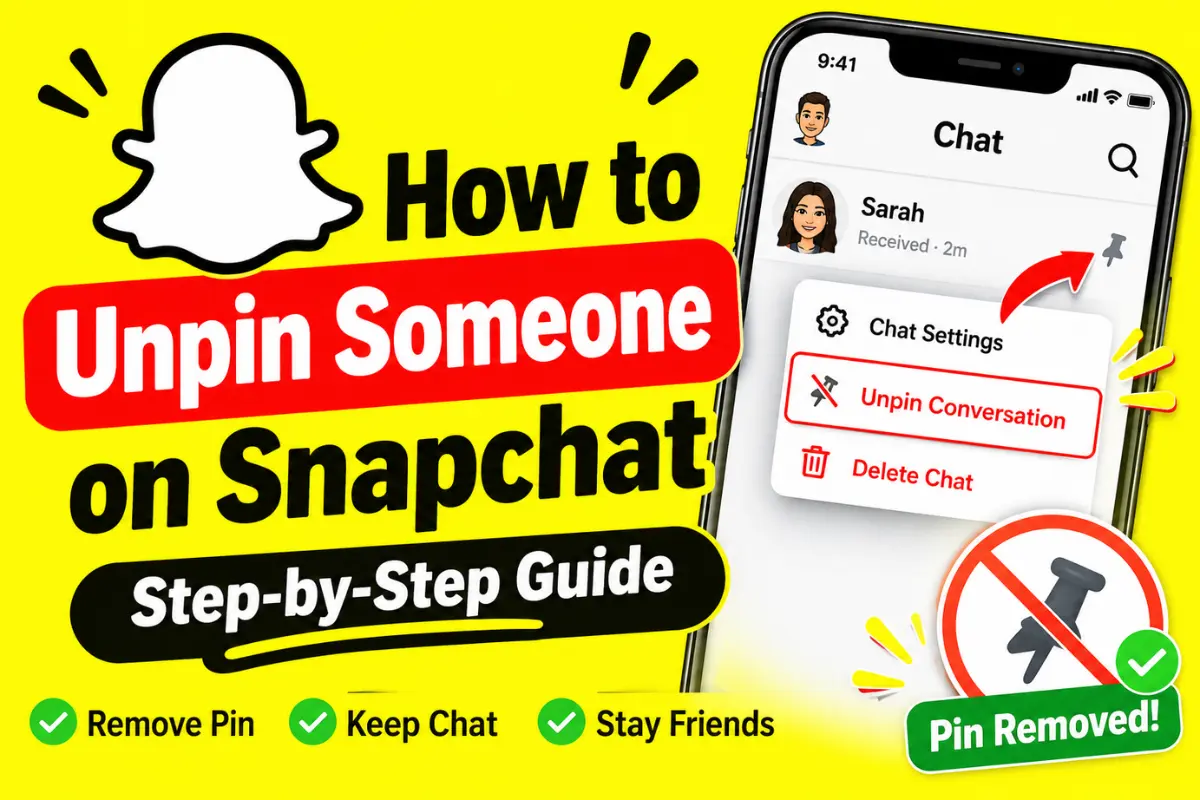
On most versions of Snapchat, press and hold the person’s conversation to open a menu.
Look for an option such as Chat Settings or a similar conversation-management option.
The exact wording and menu arrangement can vary between app versions and devices.
Step 4: Select the Unpin Option
Within the available settings, look for Unpin Conversation or an equivalent unpinning option.
Tap it to remove the pin.
If Snapchat displays a confirmation prompt, follow the instructions on the screen.
Step 5: Check Your Chat List
Return to your Chat screen and check whether the conversation is still pinned at the top.
The conversation should now follow Snapchat’s normal chat-list ordering rather than receiving priority from the pin.
It may remain near the top if you have recently exchanged messages. Therefore, seeing the conversation near the top does not necessarily mean that unpinning failed.
Tip: Snapchat occasionally changes its interface. If the menu options on your device look different, update the app and check the conversation settings again.
How to Unpin Someone on Snapchat+ (Your #1 Best Friend)
Snapchat has another feature that can be confusing: Pin as Your #1 Best Friend.
This feature is different from pinning a conversation. It is available to Snapchat+ subscribers and allows you to privately select one friend as your number-one Best Friend.
According to Snapchat’s official support information, you can pin only one person this way at a time. Only you can see your selection unless the other person also has Snapchat+ and pins you back.
Steps to Remove Your #1 Best Friend Pin
- Open Snapchat and go to your Chat screen.
- Find the friend you pinned as your #1 Best Friend.
- Press and hold their name to open the available options.
- Look for the #1 Best Friend pin setting.
- If your app offers an option to change or remove the selection, follow the on-screen instructions.
Important: Snapchat’s regular Unpin Conversation instructions do not necessarily remove your Snapchat+ #1 Best Friend selection. These are separate features, so check which pin you want to remove before changing any settings.
What Happens When You Unpin Someone on Snapchat?
Unpinning a regular conversation changes how your chats are organized. It does not end your friendship or delete your messages.
Here is what you should expect after unpinning a conversation:
- The pin is removed: The conversation no longer receives priority because of that pin.
- Your chat history remains: Unpinning is not the same as deleting messages or clearing a conversation.
- You remain friends: The person stays on your friends list unless you separately remove them.
- Messaging continues normally: You can still send Snaps and messages as usual.
- The chat may stay near the top: Recent activity can keep an unpinned conversation high in your chat list.
You can also pin the conversation again later if the feature is available on your device.
Does Snapchat Notify Someone When You Unpin Them?
No. Snapchat’s official support documentation states that users are not notified when you pin a conversation. Unpinning a regular conversation is a private chat-management action as well.
This means you can reorganize your Chat screen without sending the other person a notification that you changed the pin.
However, a mutual Snapchat+ #1 Best Friend pin is a separate situation. When two eligible subscribers pin each other as their number-one Best Friend, Snapchat displays a special Best Friend Emoji to both users.
Why Can’t You Unpin Someone on Snapchat?
Sometimes, the unpinning option may not appear where you expect it. The reason can depend on your device, the type of pin, or the version of Snapchat you are using.
Here are a few things to check.
1. You Are Using an Android Device
Snapchat’s official help page currently states that regular conversation pinning is available on iOS only. If you use Android and cannot find the Unpin Conversation option, this may explain why.
Remember that Snapchat+’s #1 Best Friend pin is a separate feature.
2. The Conversation Is Not Actually Pinned
A chat appearing at the top does not necessarily mean it is pinned. Recent messages can move conversations higher in your list.
Open the conversation’s settings and check which options are available.
3. Your Snapchat App Needs an Update
An outdated app may have a different interface or lack recent changes.
Visit your device’s app store, check for a Snapchat update, and reopen the app after installing it.
4. You Are Trying to Remove a Best Friend
Snapchat automatically determines your Best Friends based on your interactions. You cannot manually remove someone from the regular Best Friends list; the list changes as your communication habits change.
If your goal is to change that list, focus on your normal interactions rather than the chat-pinning setting.
Latest Snapchat Updates: What You Should Know
As of November 2026, Snapchat’s official support documentation distinguishes between regular pinned conversations and the Snapchat+ #1 Best Friend feature.
The standard conversation-pinning instructions specify iOS availability, while the #1 Best Friend feature is listed among Snapchat+ benefits. This distinction matters because many online guides use the word pin for both features.
Before following an online tutorial, check whether it explains how to unpin a conversation or how to change your #1 Best Friend selection. Choosing the wrong instructions can leave you searching for an option that does not apply to your situation.
Frequently Asked Questions
Can I unpin someone on Snapchat without deleting the chat?
Yes. Unpinning removes the conversation’s pinned status. Your chat history remains available.
Will the person know that I unpinned them?
Snapchat does not send a direct notification when you manage a regular conversation pin.
Can I unpin someone and still be friends with them?
Yes. Unpinning does not remove someone from your friends list or block them.
Does unpinning someone remove them from my Best Friends list?
No. Regular chat pins and the automatic Best Friends list are different features.
Can I pin the same person again later?
Yes, if the relevant pinning feature is available to your account and device. You can return to the conversation settings to check the available options.
Final Thoughts
Unpinning someone on Snapchat is a straightforward way to organize your conversations without changing your friendship.
On supported iOS versions, open your Chat screen, press and hold the pinned conversation, select Chat Settings, and tap Unpin Conversation.
If you are using Snapchat+ to pin someone as your #1 Best Friend, remember that this is a separate feature with different settings.
Understanding the difference will help you manage your chats confidently without accidentally deleting conversations, removing friends, or changing the wrong setting.